1. Dashboard
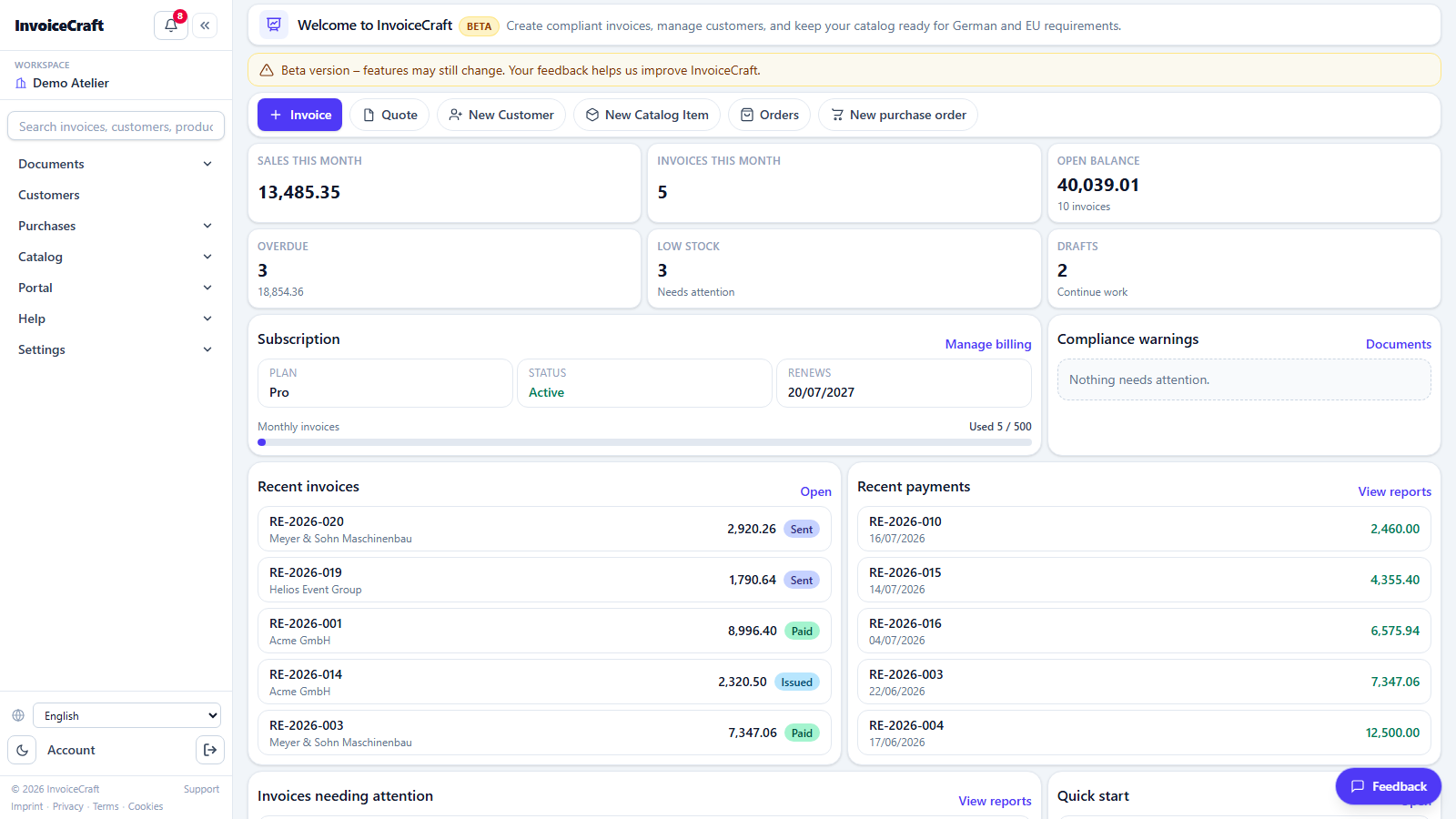
/appYour home page after signing in — a complete picture of your company's situation in seconds.
- Key metrics: open (uncollected) balance, overdue invoices, low-stock products, and drafts.
- An “Invoices needing attention” list sorted by priority (overdue first, then open).
- A “Quick start” checklist for the first setup steps (company profile, first customer, first product, first invoice).
- “Low stock” and “Recent customers” cards with direct links.
- Quick-action buttons to create a new document or open customers and catalog.
- A fixed sidebar for navigation, with global search (invoices, customers, products) at the top.
2. Documents (invoices, quotes & delivery notes)
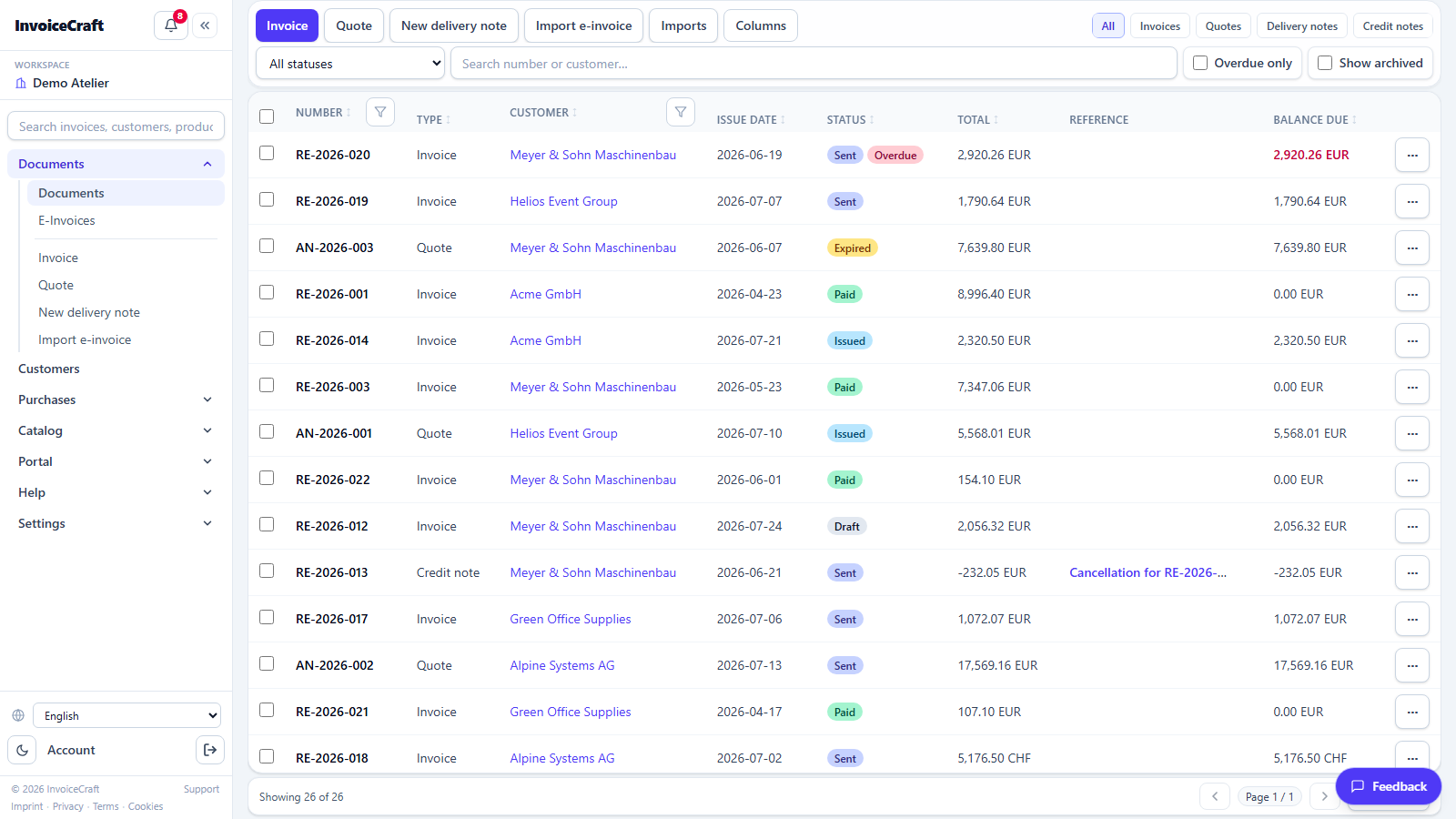
/documentsThe operational heart of the app: one table for all invoices, quotes, delivery notes, and credit notes (Gutschrift).
- Tabs by type: invoice, quote, delivery note, e-invoice import, and imports.
- Filter by status: draft, issued, paid, cancelled — plus an “overdue only” filter and full-text search.
- Shows number, customer, issue date, status, reference, and open balance for each document.
- Direct actions: open the document, record payments, and view the archive.
- Pagination with adjustable page size, an inner scroll area, and a sticky table header.
3. Creating a new document
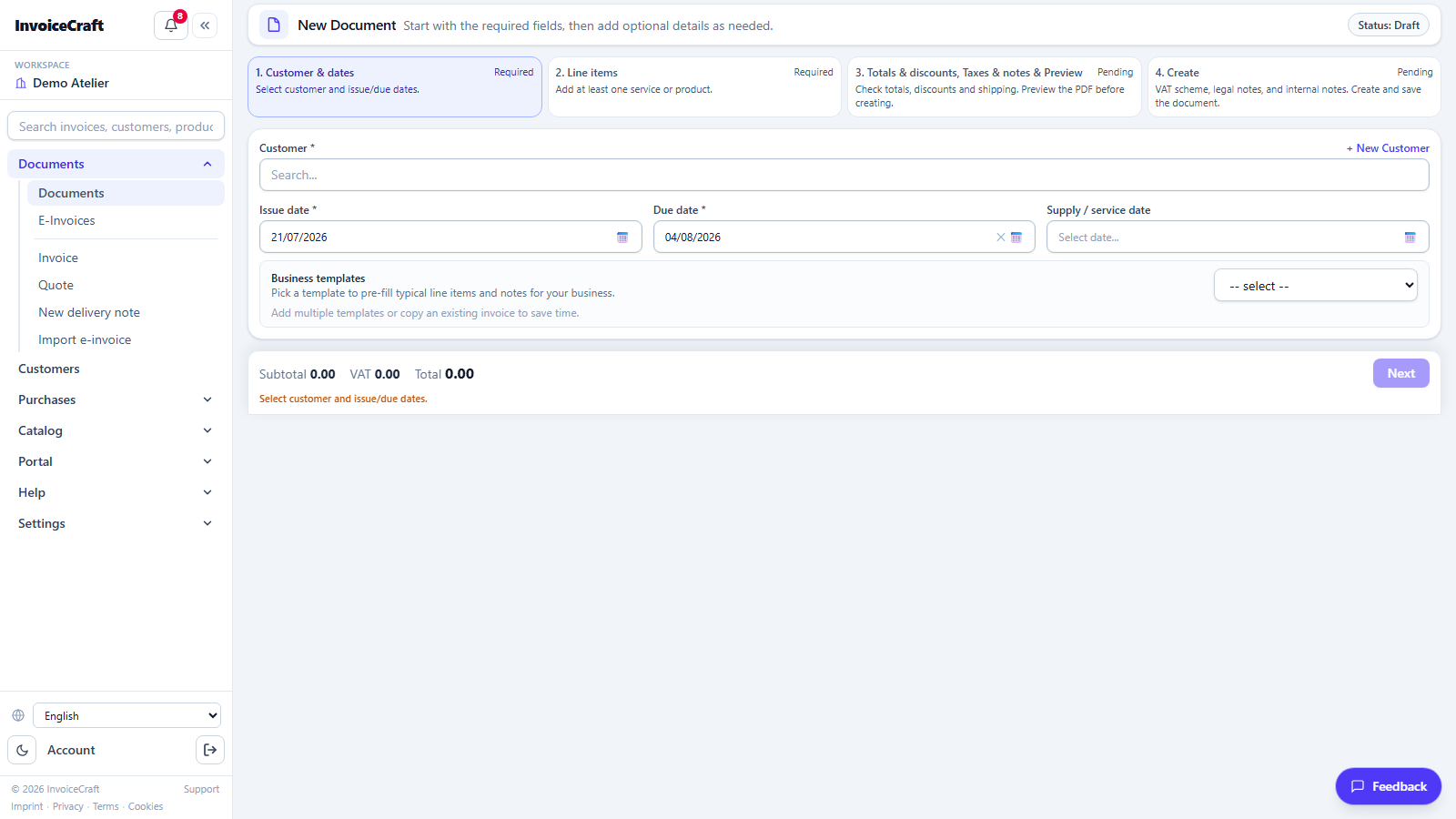
/documents/newA step-by-step wizard to create a new invoice, quote, or delivery note quickly and without mistakes.
- Choose the document type (invoice / quote / delivery note), then pick the customer from a searchable list.
- A delivery note shows items and quantities only — no prices or tax.
- Add line items from the catalog or manually: quantity, price, and VAT rate per line.
- Automatic totals: net, VAT (including small-business §19 UStG “Kleinunternehmer” support), and gross.
- A final review before saving as a draft or issuing immediately.
4. Customers
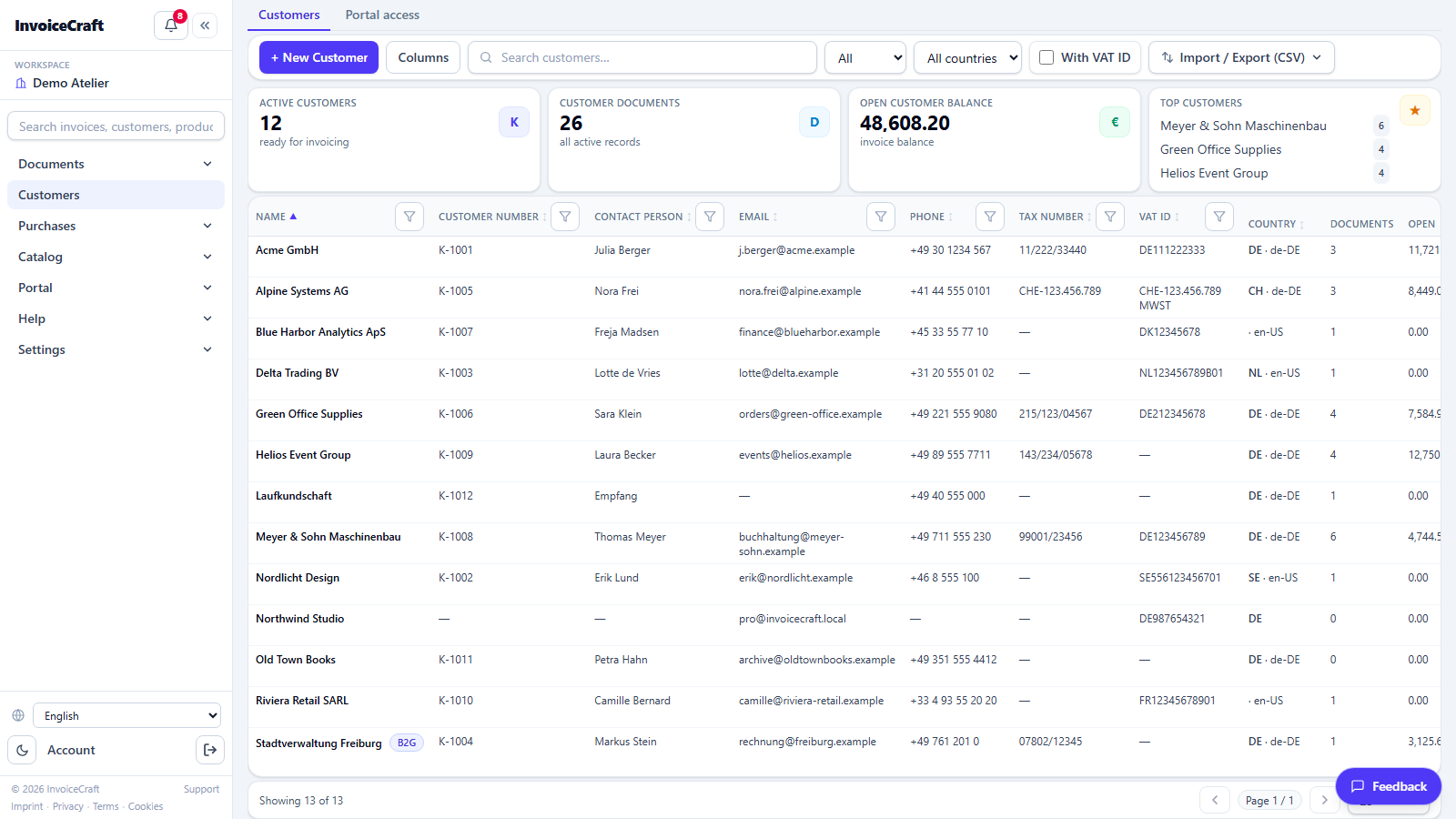
/customersFull customer management with all the tax data required for German and EU invoicing.
- A metrics bar at the top: active customers, document count, open balance, and top customers.
- The table shows per customer: activity (document count, open balance, last document), contact data, and tax details (tax number, VAT ID, and the Leitweg-ID for public-sector B2G customers).
- Status badge (active / inactive) and a B2G badge for government entities.
- Instant search, edit and delete actions per row, and a card view on mobile.
5. Catalog (products & services)
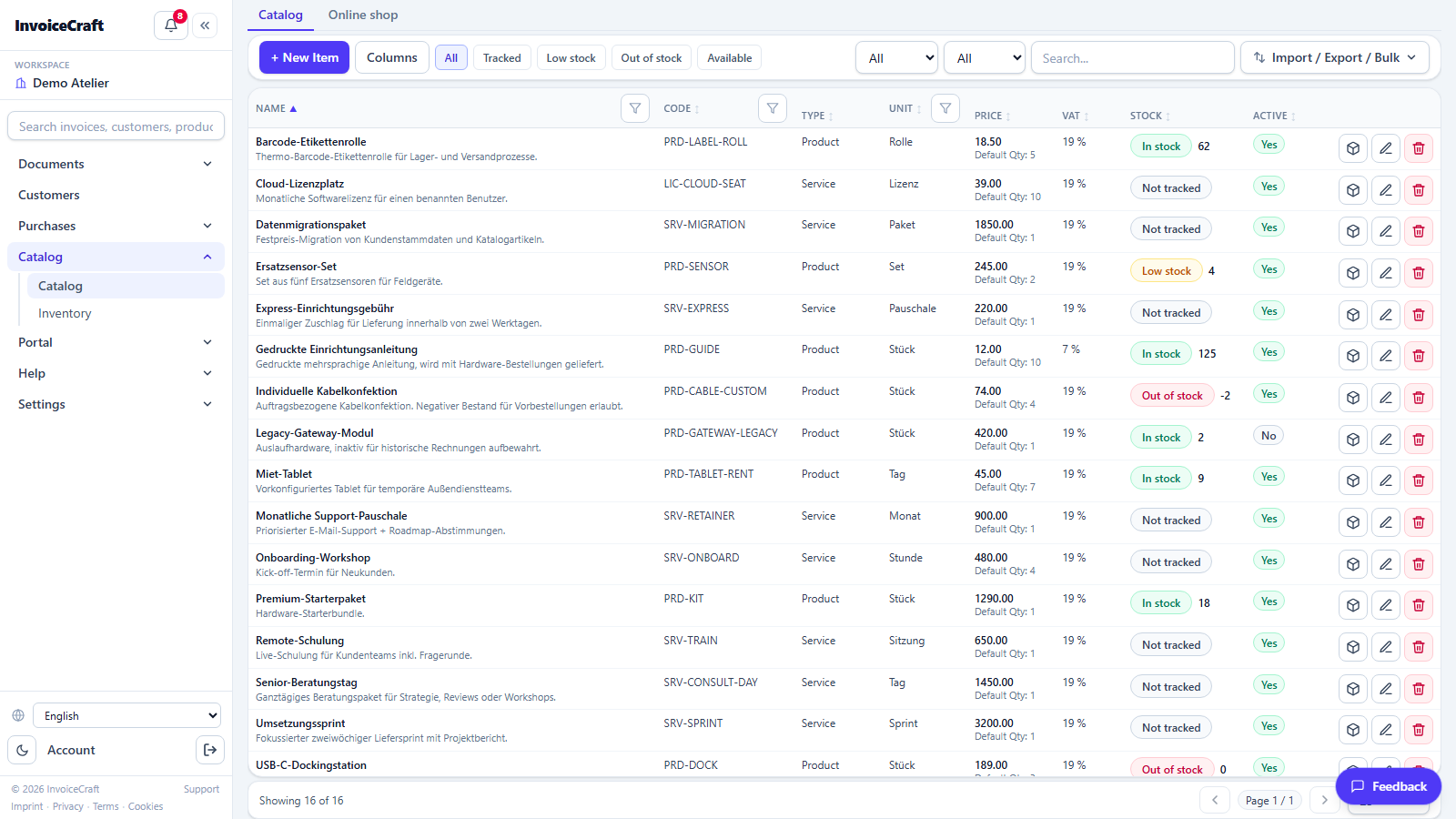
/catalogThe library of products and services your invoice lines are built from, with optional inventory tracking.
- Each item has: name and description, type (product / service), unit, code, price, default quantity, and VAT rate.
- Inventory tracking: current stock, low-stock alert threshold, stock value, with colored status badges (in stock / low / out / not tracked).
- A quick stock filter (all, tracked, low, out, available) and text search.
- A stock-adjustment button right in the table, and a link to each product's movement history.
6. Inventory report
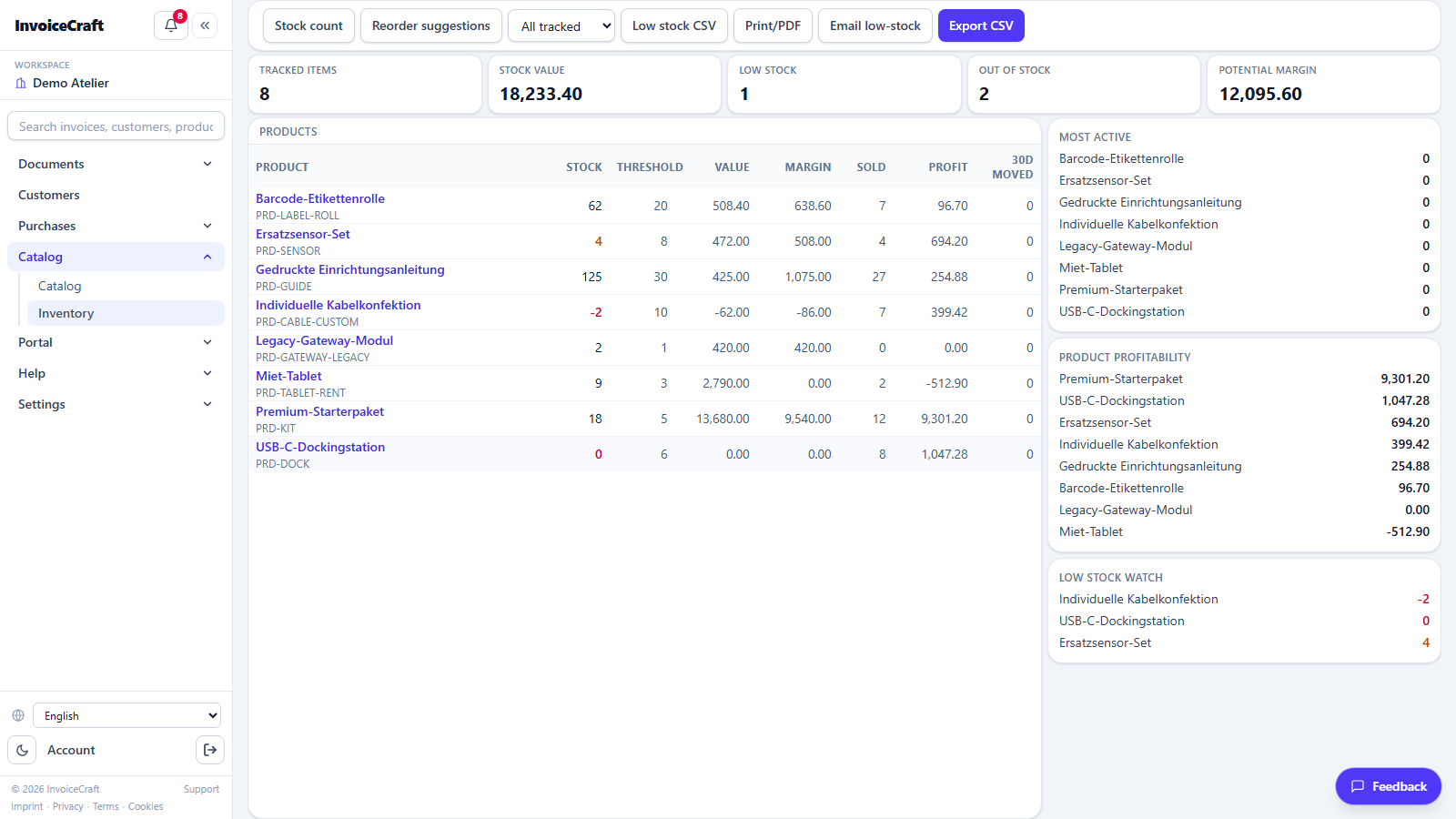
/inventoryAn analytical view of your inventory: value, alerts, and movement velocity.
- Metrics: total stock value, tracked item count, low-stock items, and potential margin.
- A detailed table with current stock, alert thresholds, and 30-day movement.
- A low-stock watch list and the most active products.
- CSV export, print / PDF, and a low-stock email to your team.
7. Reports
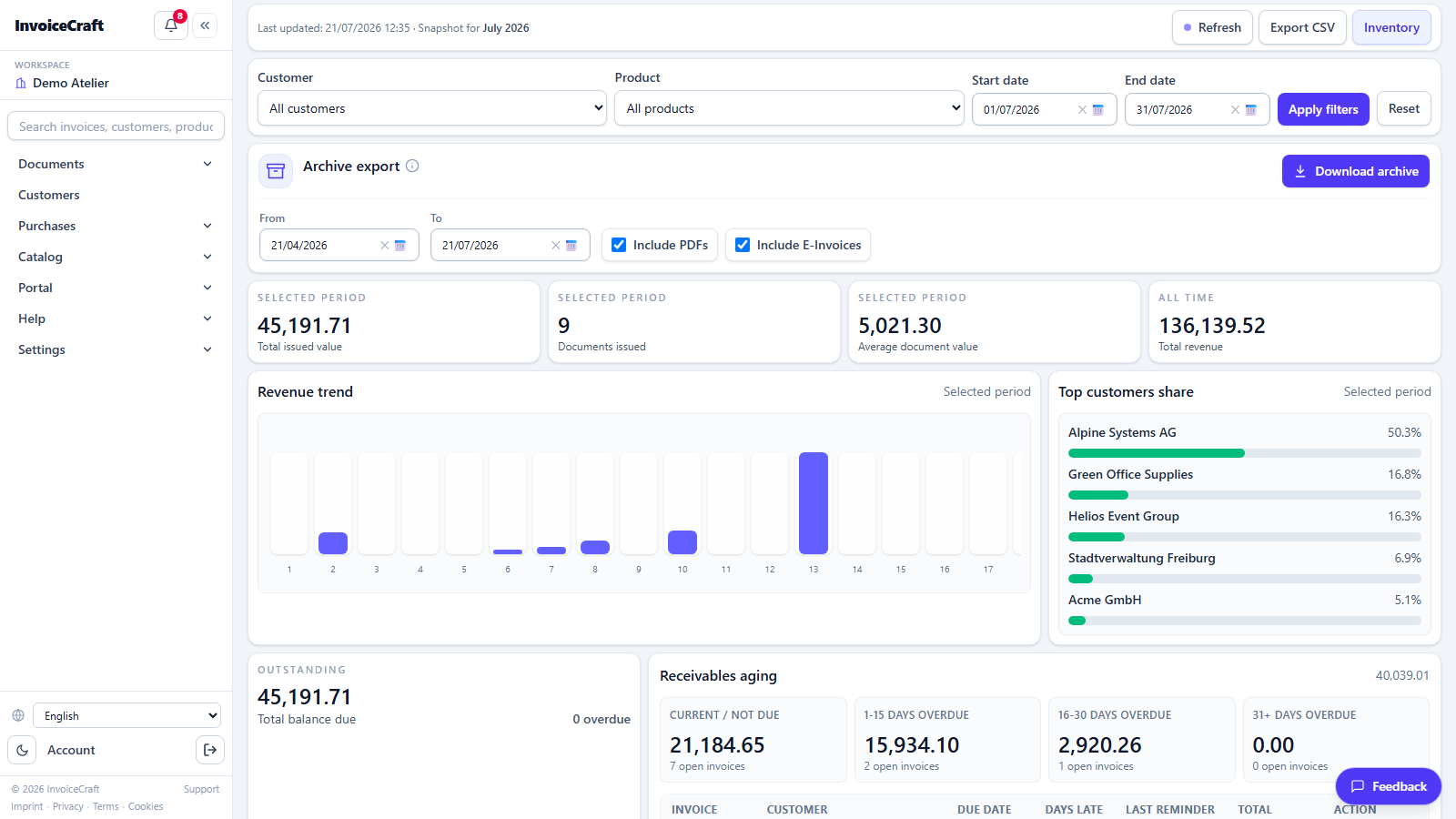
/reportsFinancial reports for the selected period, with a full archive export.
- Filter by customer, product, and date range.
- Period metrics: issued value, document count, average document value, and grand total.
- A revenue trend chart and top customers' share of revenue.
- An accounts-receivable aging table (not due, 1–15, 16–30, 31+ days overdue) and the overdue invoice list.
- Export a ZIP archive with the PDFs, e-invoice XML files, and validation protocols for a chosen period.
8. Activity log
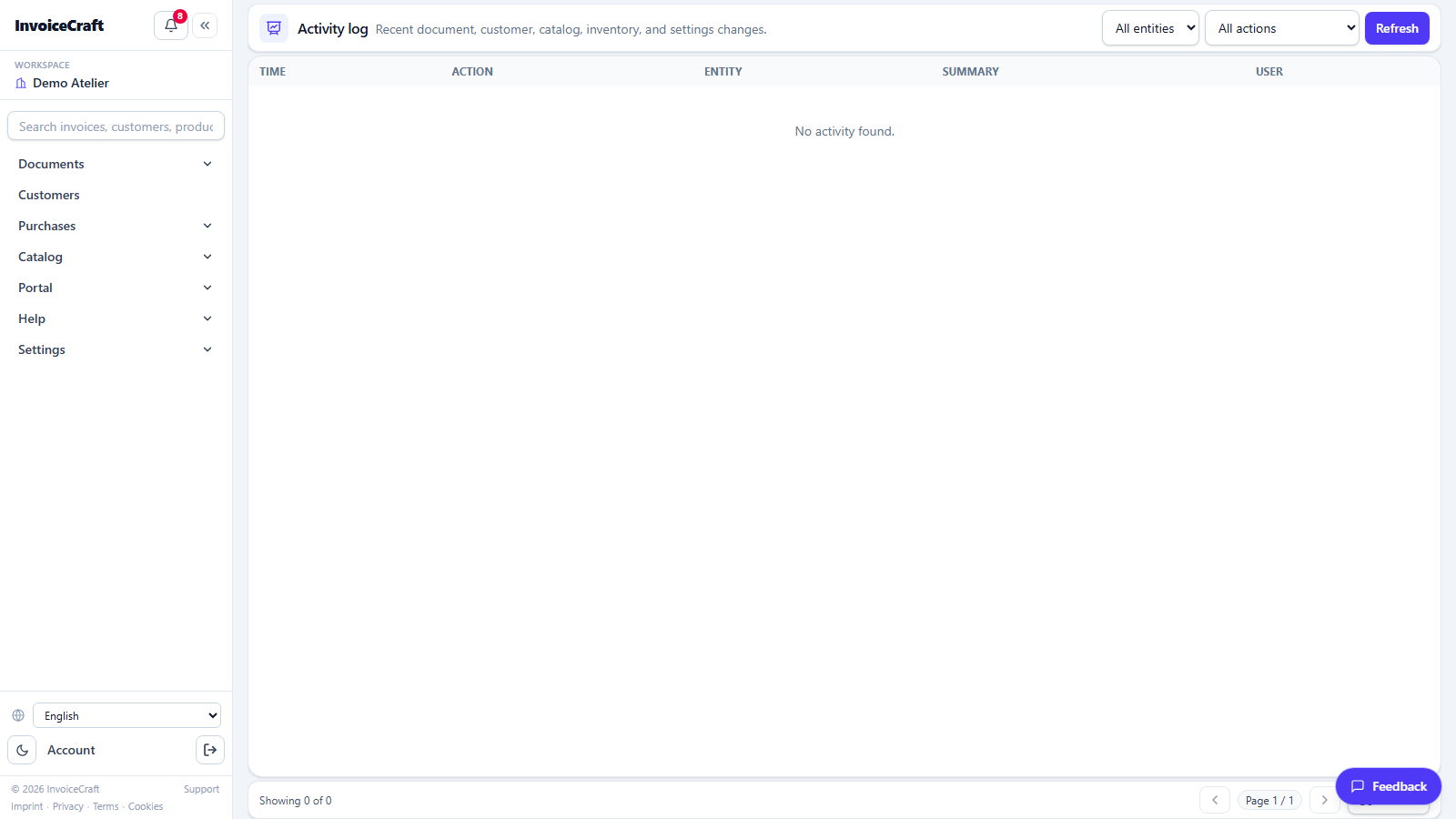
/activityAn audit trail of every change in the account — who changed what, and when.
- Covers documents, customers, catalog, inventory, and settings.
- Filter by entity, action type, user, and period.
- Shows the time, action, entity, change summary, and the user who made it.
9. Incoming e-invoices
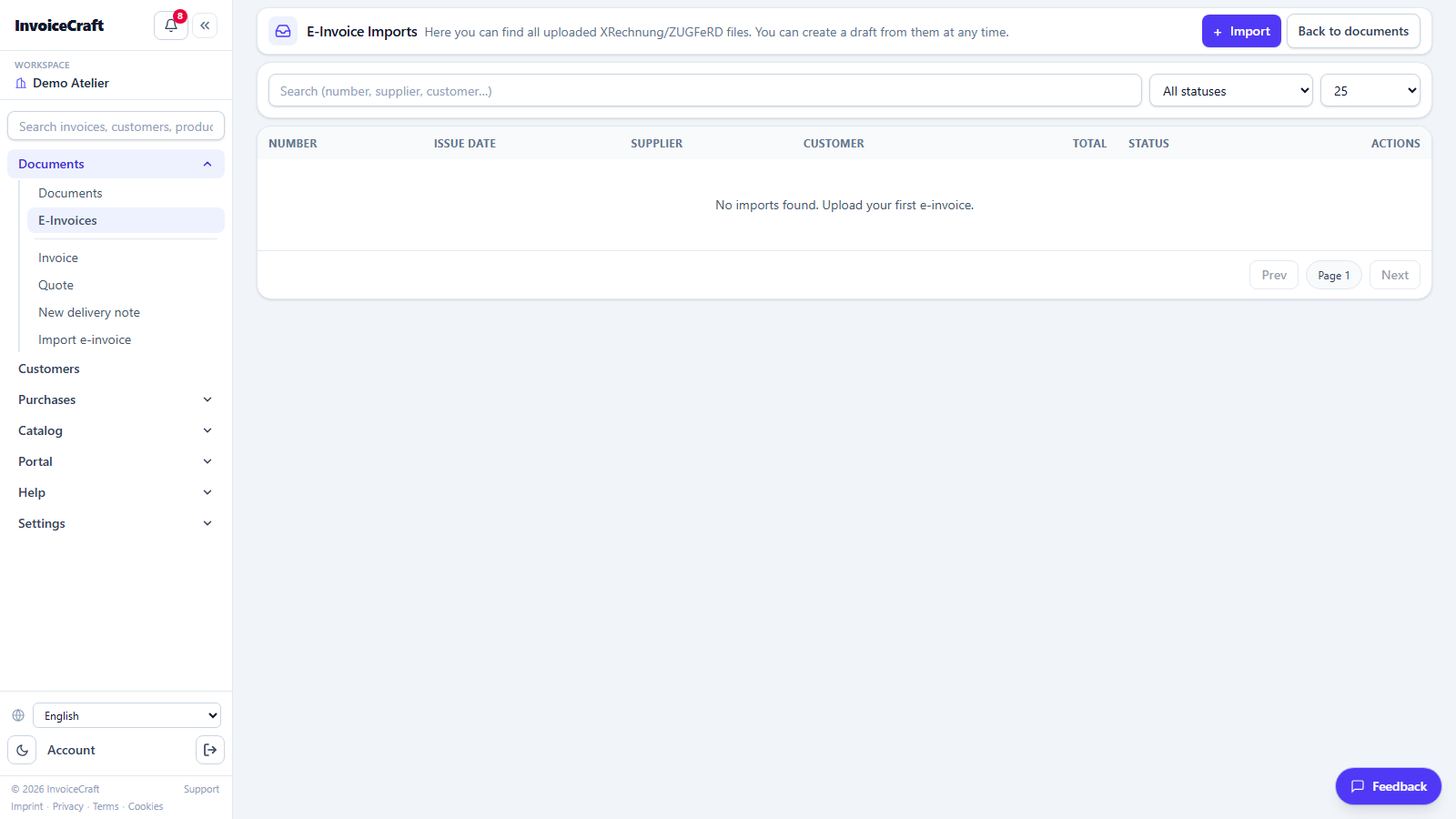
/einvoicesReceive and inspect supplier e-invoices in XRechnung and ZUGFeRD formats.
- Import e-invoice XML / PDF files and validate them.
- See the validation status for every imported invoice.
- A details page per invoice showing all extracted data.
10. Import & export
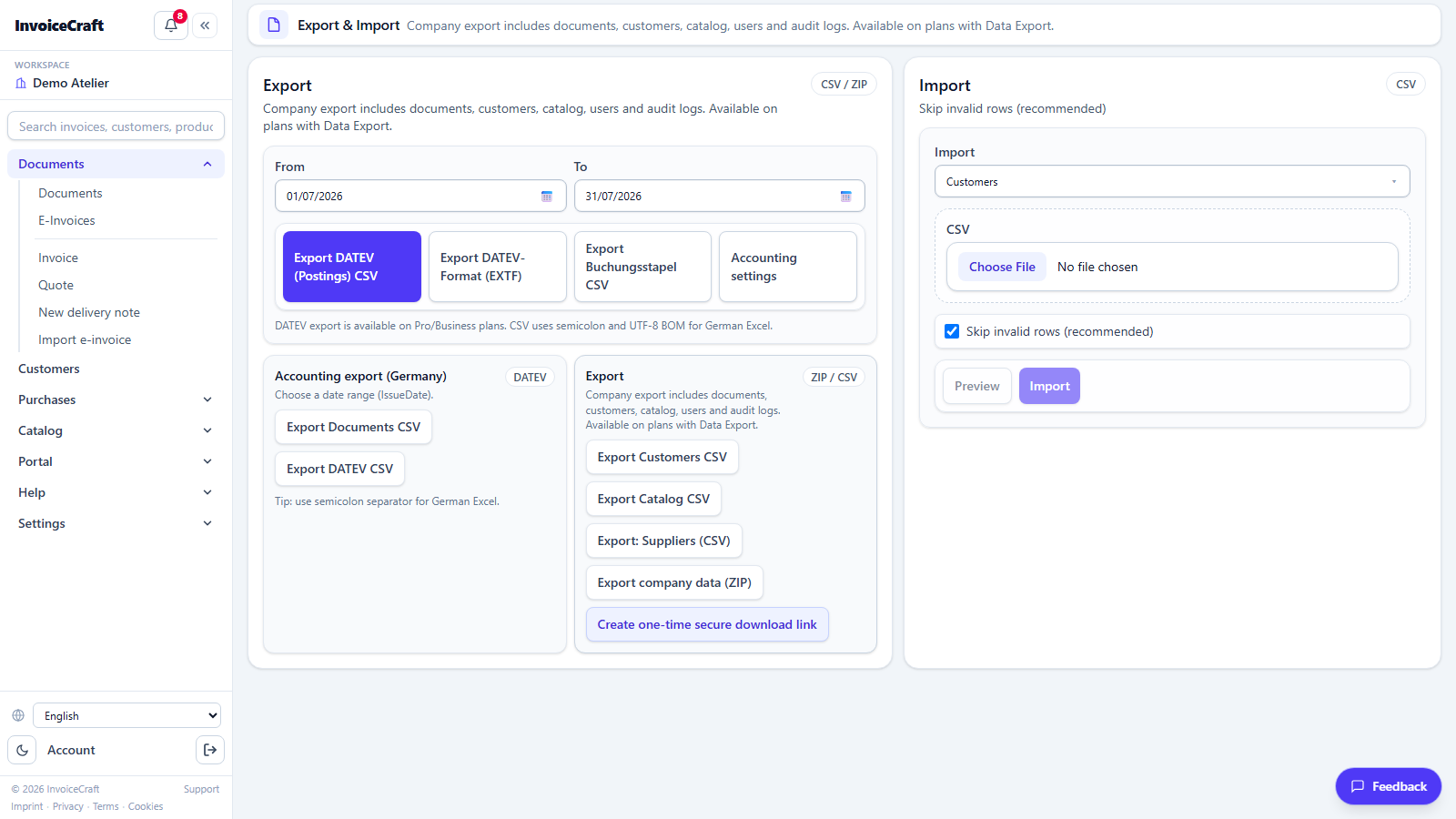
/import-exportMove data in and out of the app as CSV.
- Bulk-import customers and catalog items from CSV files.
- Export your data for backup or external processing.
- Ready-made templates and file-format instructions.
11. Company settings
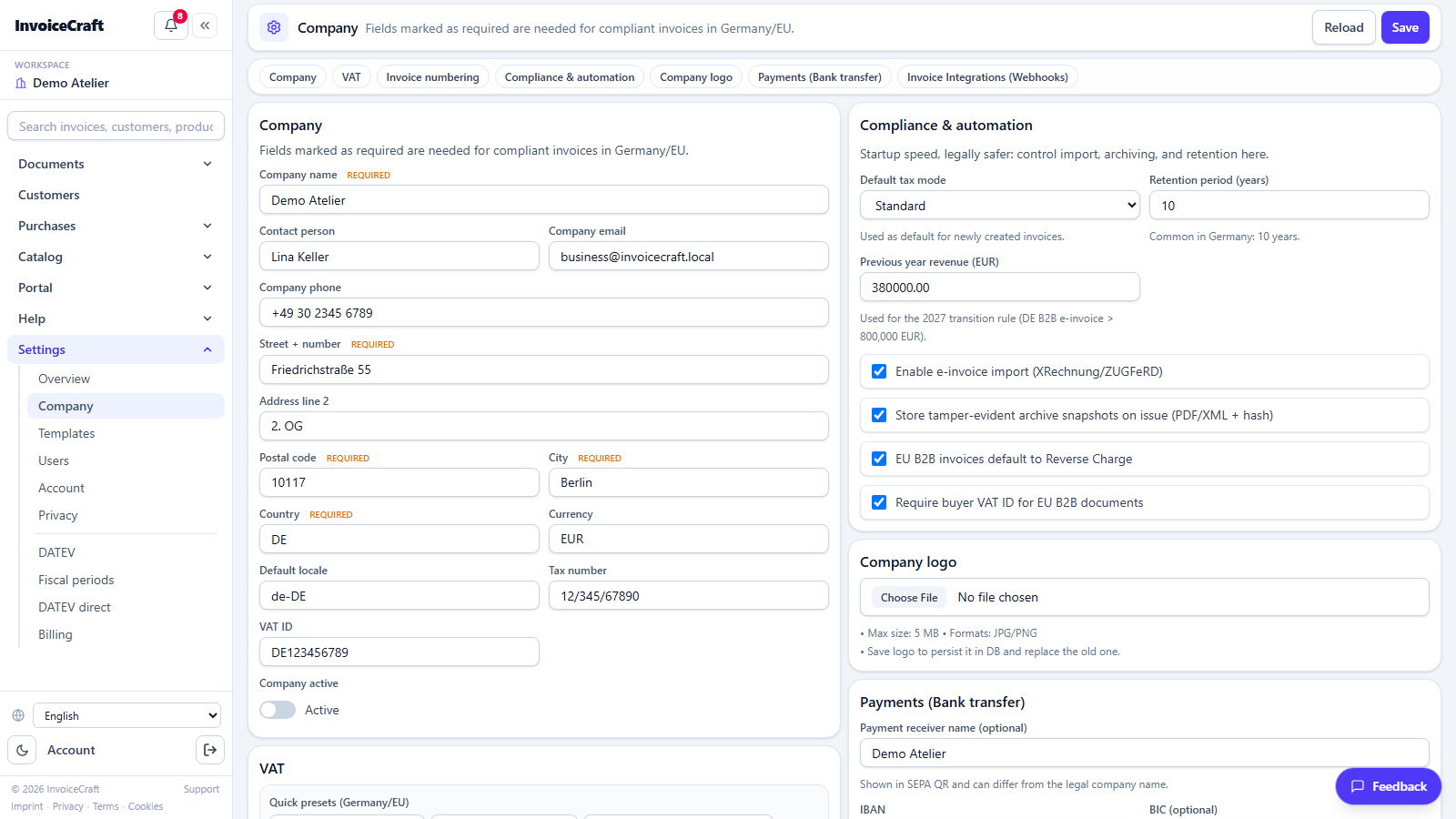
/settings/companyThe official data that appears on your invoices and controls invoicing behavior.
- Company name, address, contact data, and logo.
- Tax numbers (Steuernummer / USt-IdNr) and the small-business (Kleinunternehmer) option.
- Bank details (IBAN / BIC) printed on the invoice.
- Invoice and quote number prefixes, default currency and language.
12. Invoice templates
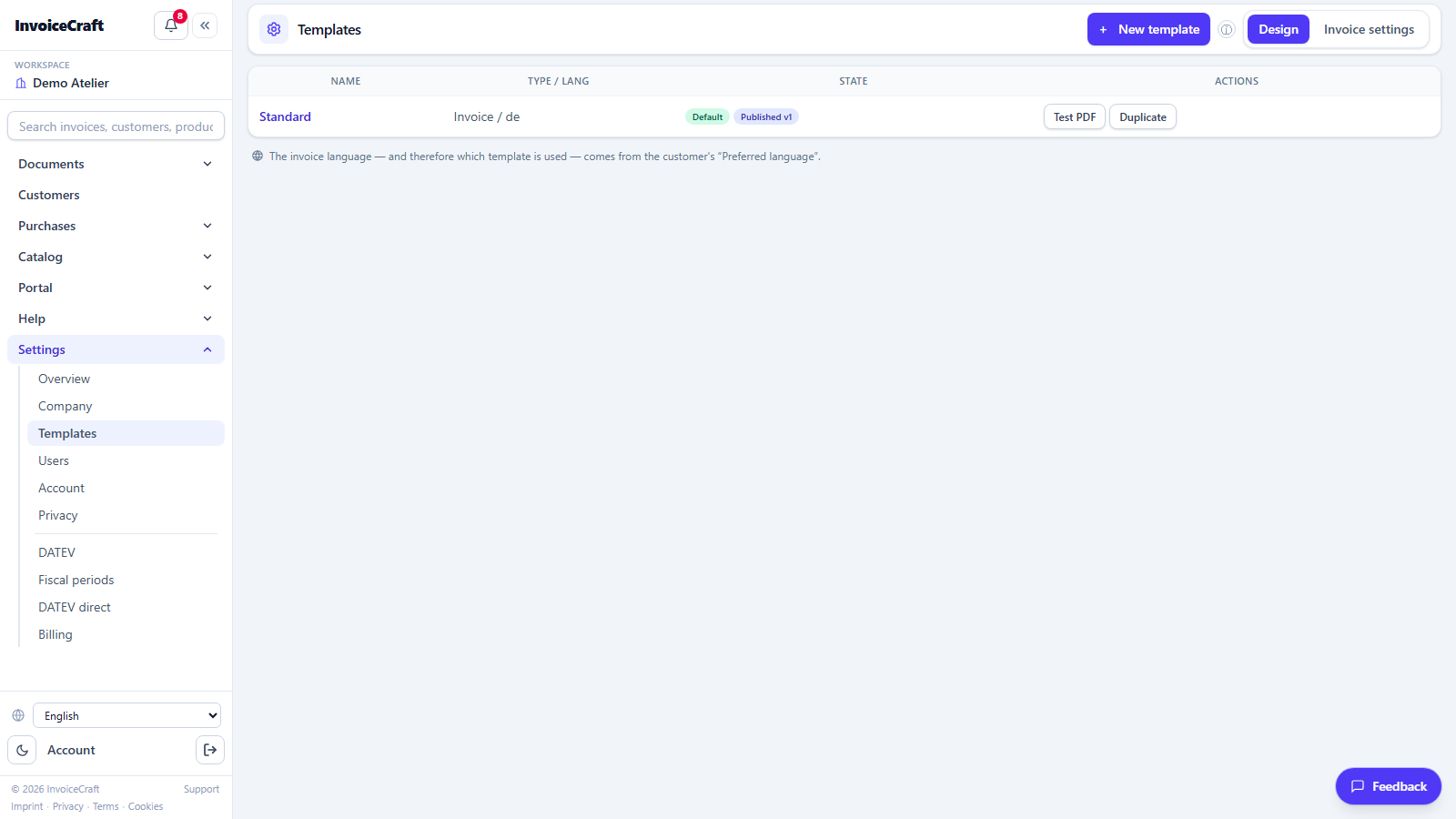
/settings/templatesCustomize the final PDF your customer receives.
- Choose a design template and customize the colors.
- Header and footer texts (payment terms, legal notes, greeting).
- A live preview of the template before saving.
13. Users & invitations
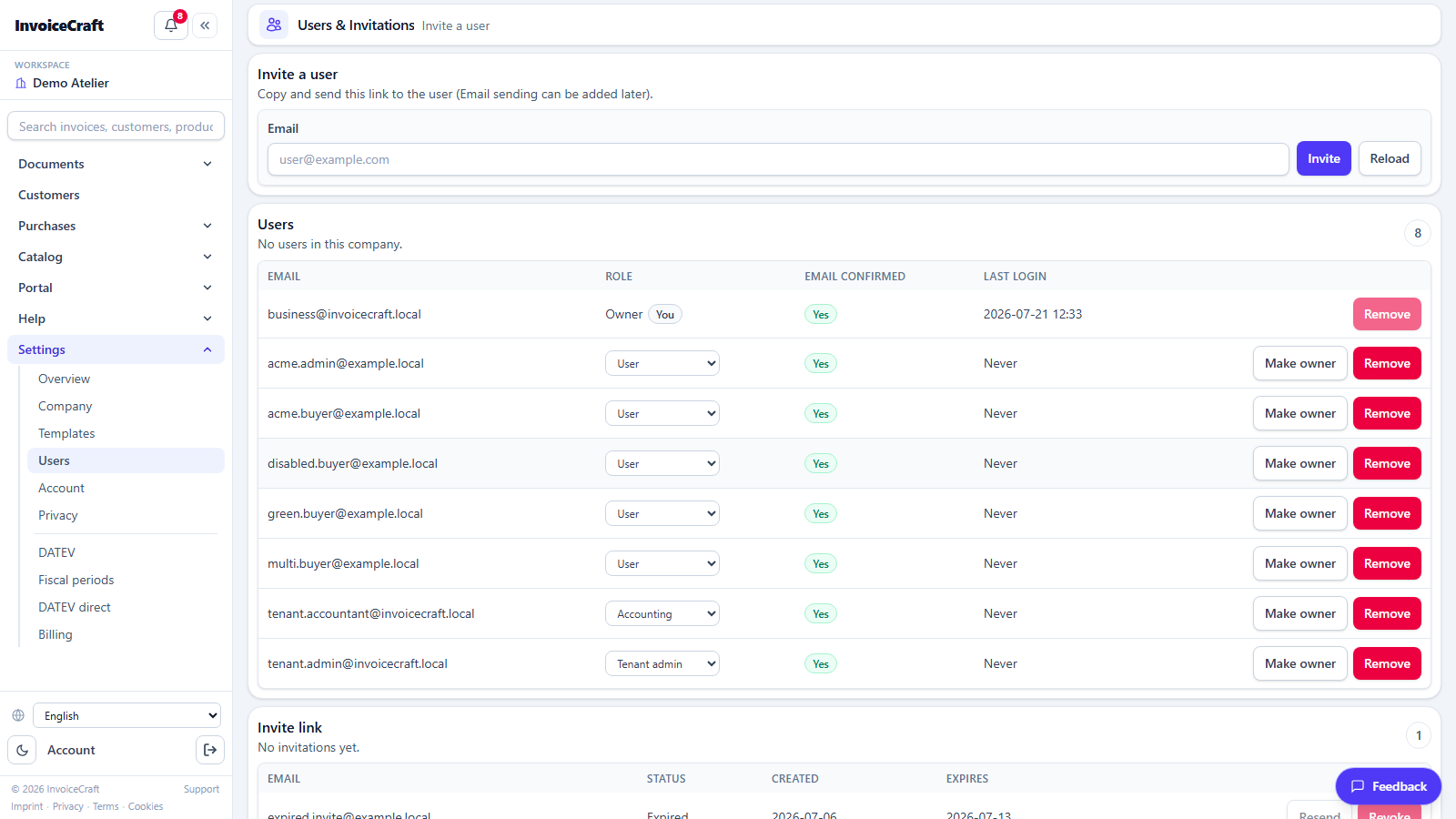
/settings/usersManage your team and their permissions inside the company account.
- Invite new members by email.
- Graduated roles and permissions (owner, manager, editor…) control what each member can do.
- Track and cancel pending invitations, and manage current members.
- Changing a member's role or removing a member ends that member's open sessions on all devices; after a role change they sign in again with the new permissions. Transferring ownership does the same for the previous and the new owner.
14. Subscription & billing
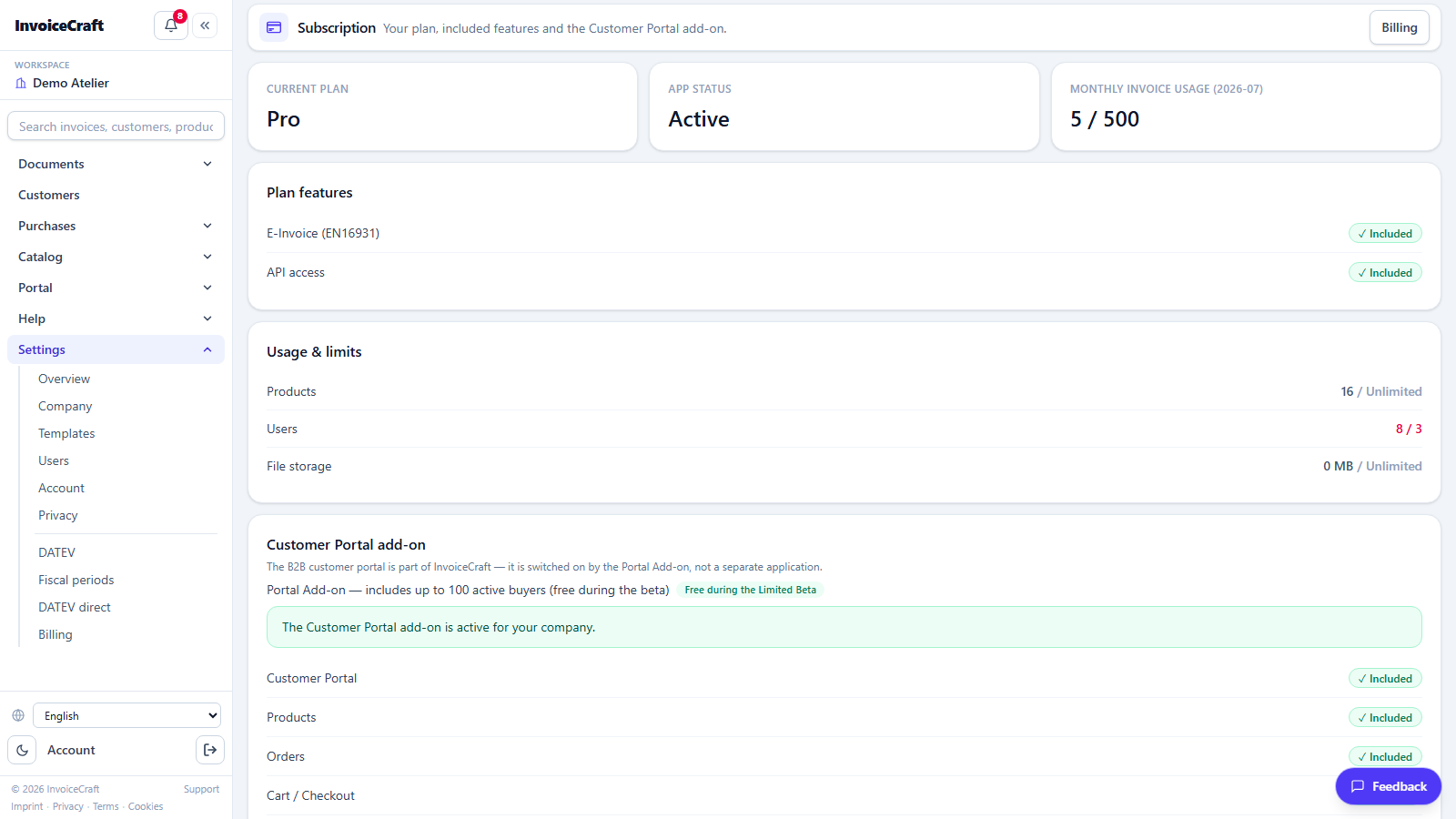
/billingManage your own InvoiceCraft subscription plan.
- See your current plan (Free / Basic / Pro / Business) and its limits.
- Upgrade or downgrade, and manage your payment method via Stripe.
- View your previous subscription invoices.
15. Suppliers
/suppliersThe counterpart to Customers: the companies you buy from. Suppliers link your purchase orders, purchase invoices and expenses together.
- Record contact data, address, tax number and payment terms for each supplier.
- Search suppliers by name and filter by status (active / inactive).
- Open a supplier to see its purchase orders and purchase invoices in one place.
- Inactive suppliers stay in your history but no longer appear in selection lists.
16. Purchase orders
/purchase-ordersOrder goods from your suppliers and track what actually arrives.
- Create a purchase order from the catalog and send it to the supplier by email as a PDF.
- Record goods receipts — partially or in full; stock is increased by what you actually received.
- Return goods to a supplier when a delivery is wrong or damaged.
- Three-way matching compares the order, the goods receipt and the supplier's invoice, and flags any discrepancy before you pay.
- Reorder suggestions (in the inventory area) can create a purchase order for products that are running low.
17. Purchase invoices
/purchase-invoicesThe invoices your suppliers send to you — the input side of your VAT return.
- Enter a purchase invoice manually, or create it from an existing purchase order.
- The incoming inbox (/incoming) receives supplier invoices, shows the extracted data for review and converts them to purchase invoice drafts — you always confirm before anything is booked.
- Track payment status and due dates so nothing is paid twice or too late.
- Book a purchase invoice as an expense in one step to get it into your expense ledger.
18. B2B inbox
/b2b-inboxDocuments sent to your company by linked sellers on this platform — without email or file exchange.
- See every document another InvoiceCraft company has issued to you.
- Open a document snapshot: exactly what the sender issued, unchanged.
- Convert an inbox document to a purchase draft in one step.
- Company links are approved under Settings → Company links, so no one can push documents to you without your consent.
19. Expenses
/expensesYour running business costs — from a receipt to a booked, approved expense.
- Record an expense with date, description, amount, VAT rate and category, and attach the receipt.
- Filter by date range, ledger, category and status.
- Approval workflow: submit, approve or reject an expense — a rejection always carries a reason.
- Book an existing purchase invoice directly as an expense instead of typing it twice.
20. Expense ledgers
/expense-ledgersThe account structure your expenses are booked into — so the totals match what your tax consultant expects.
- Define ledgers with a name, a type and a description.
- Assign each expense to a ledger; reports and exports group by ledger.
- Set up your ledgers once at the start, then reuse them for every expense.
21. Banking
/bankingImport bank statements and reconcile them with your invoices.
- Keep one or more bank accounts with name and IBAN.
- Import a bank statement file; the transactions are listed with date, amount and purpose.
- Match a transaction to an open invoice to mark it as paid — matching candidates are suggested for you.
- The imported balance also feeds the cashflow forecast, so keep it current.
22. Cashflow forecast
/cashflowA rolling 13-week projection built from your bank balance, open invoices and recurring schedules.
- Key figures: current bank balance, lowest projected balance, the week at risk, overdue receivables and open payables.
- Compare three scenarios — Base, Optimistic and Conservative.
- Scenarios are a projection only: they never change your documents.
- If the bank balance is missing or outdated the page says so and marks the forecast low-confidence — import a recent statement in Banking.
23. Recurring invoices
/recurring-invoicesFor customers you bill on a fixed rhythm — subscriptions, retainers, maintenance contracts.
- Define a schedule (for example monthly or quarterly) from an existing invoice.
- Preview the next invoice before it is generated.
- Generate the next invoice as a draft, so you review it before sending.
- A period that has already been generated is not generated twice.
24. Quote templates
/quote-templatesReusable line-item sets for quotes you write again and again.
- Save a frequently used combination of products and services as a template.
- Start a new quote from a template instead of retyping the positions.
- Edit a template centrally — future quotes pick up the change.
25. Projects
/projectsTrack time on customer projects, approve hours and bill them as invoice drafts.
- Create a project per customer with a budget and an hourly rate.
- See booked hours against the budget, so overruns are visible early.
- Approve submitted hours before they become billable.
- Turn approved hours into an invoice draft in one step.
26. My timesheet
/timesheetThe personal view for everyone who books hours.
- Book hours on a project with date, duration and description.
- See your own week at a glance and correct entries before submitting.
- Submit hours for approval; approved hours can be billed via Projects.
27. Customer portal administration
/portal-admin/dashboardThe B2B portal your customers log into to order from you directly. This is the seller-side administration of that portal.
- Dashboard — portal activity and open orders at a glance.
- Products & categories — decide which catalog items appear in the online shop and how they are grouped.
- Pricing — customer-specific prices and discounts.
- Customers — grant portal access to a customer's users and withdraw it again.
- Orders — review incoming portal orders and convert them into documents.
- Settings — how the portal presents itself to your customers.
28. Smart insights
/insightsRules-based suggestions derived from data you already have.
- Points out things worth a look — customers who pay late, products that are not moving, unusual cost trends.
- Every suggestion links straight to the document or record it refers to.
- Read-only: insights never change anything by themselves.
29. Notifications
/notificationsThe central inbox for everything the app wants to tell you.
- Overdue invoices, new portal orders, finished imports and exports, failed deliveries.
- The bell in the header shows the unread count; the page shows the full history.
- Open a notification to jump directly to the record it concerns.
30. Login history
/security/login-historyWho signed in to your company account, when and from where.
- Successful and failed sign-in attempts with time and IP address.
- Check for access you do not recognise.
- Two-factor authentication and password changes are managed under Settings → Account.
- Signing out ends your session on every device, not just in this browser. Enabling or disabling two-factor authentication ends your sessions on other devices; this browser stays signed in.
31. Referral program
/referralsRecommend InvoiceCraft to other businesses.
- Get your personal referral link.
- Follow how many referred companies have signed up.
- See the reward conditions currently in effect.